Basic Git & GitHub for DevOps Engineers
What is Version Control?
A version control system (VCS) is a software tool that helps developers manage changes to their computer files, documents, or code over time. It keeps track of every modification made, creating a timeline of the project's history and allowing collaboration among team members.
In simpler terms, a version control system is like a smart backup system for your work. It stores every change you make to your files and lets you go back in time to see previous versions or undo mistakes. It's like having a safety net for your projects, making it easier to work with others and ensuring that nothing important gets lost or overwritten accidentally. So, no more worries about losing your work or messing up someone else's changes!
There are two types of version control systems:
Centralized Version Control System (CVCS): In a CVCS, there is a central server that stores all versions of the files, and team members work directly with the server. When someone makes changes, they have to lock the file to prevent conflicts, and others cannot work on it simultaneously. It's like having a single copy of a book, and only one person can edit it at a time.
Distributed Version Control System (DVCS): In a DVCS, each team member has their own local copy of the entire project, including the history. They can work independently and commit changes to their local copy. When ready, they can sync their changes with others by pushing and pulling from remote repositories. It's like everyone having their own book copy, making edits, and then merging their changes together when they're done.
In simpler terms, CVCS is like working with a single shared document that you need to lock to avoid conflicts, while DVCS is like having your own copy of the document that you can edit freely and later combine with others' changes to create a final version.
Why do we use DVCS over CVCS?
Offline Work: With DVCS, you can work on your project even when you don't have internet access. All changes are saved locally, and you can continue to commit and track versions without relying on a central server.
Easy Collaboration: DVCS allows for smoother collaboration among team members. Each developer has their own complete copy of the project, making it easier to work independently and merge changes later.
Faster Operations: Since most operations in DVCS are done locally, tasks like committing changes, branching, and viewing history are faster compared to CVCS, where everything involves communication with the central server.
Better Branching and Merging: DVCS excels at handling branches, allowing developers to create multiple parallel lines of development and merge them back together effortlessly. This flexibility enables experimentation without affecting the main project.
Redundancy and Backup: In DVCS, each developer's copy serves as a backup. If the central server goes down or data is lost, there are multiple copies available to restore the project.
Decentralized Structure: DVCS doesn't rely on a single point of failure. If the central server of a CVCS becomes unavailable, the entire team's work is affected, whereas DVCS continues to function independently on each developer's machine.
In summary, distributed version control simplifies offline work, improves collaboration, speeds up operations, enhances branching and merging capabilities, provides redundancy, and reduces reliance on a central server, making it a preferred choice for many development teams.
What is Git?
GIT is a distributed version control system designed to track changes in source code during software development. It helps developers to track changes made to the code, allows easy collaboration, and helps manage different versions of the code. It's like a time machine for code, letting you go back to previous versions or combine changes from multiple people. GIT is widely used in the software industry to work more efficiently and maintain code integrity.
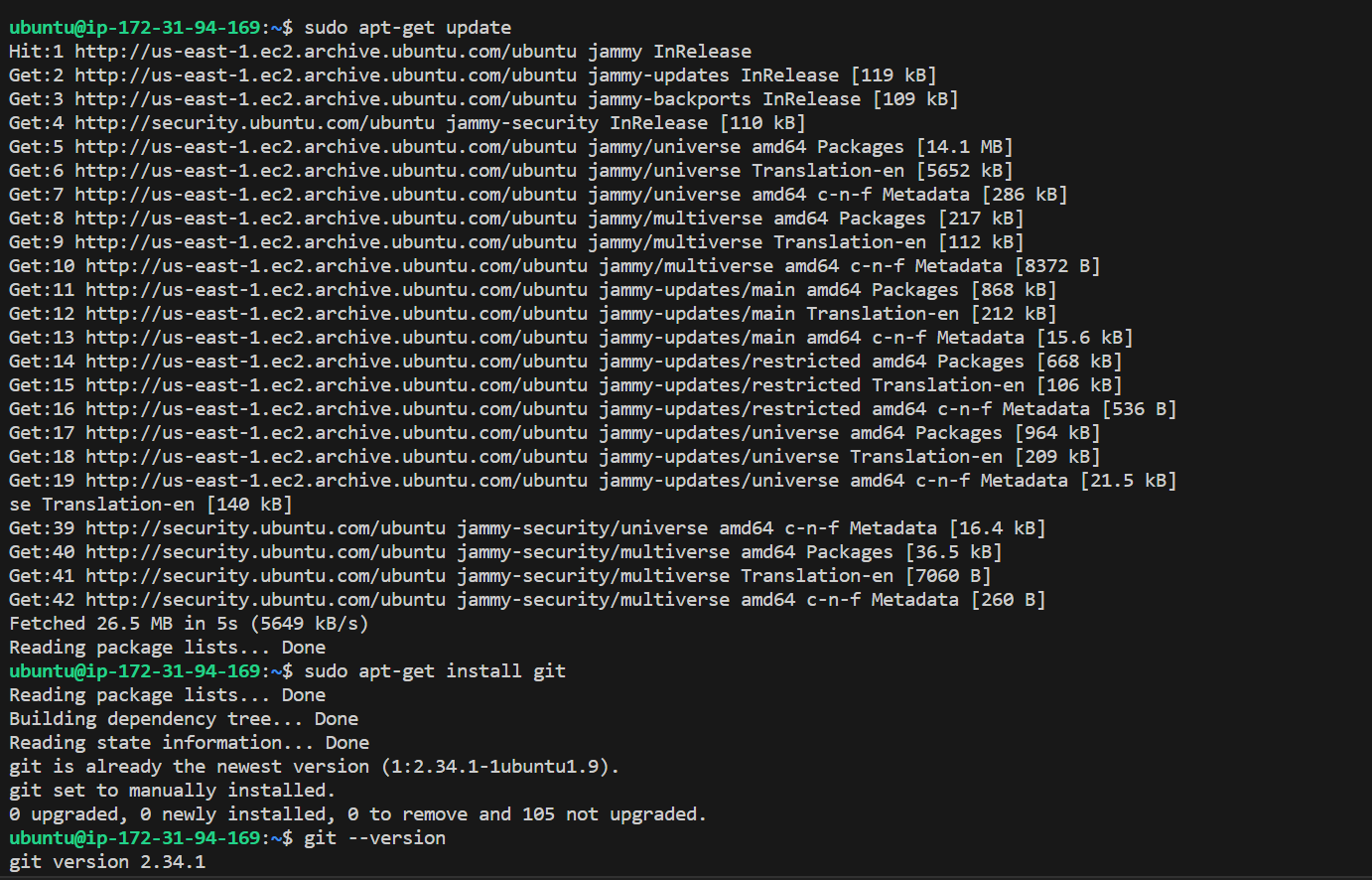
Installing Git:
Installing Git on a Linux (Ubuntu) Server
sudo apt-get update
sudo apt-get install git
git --version
What is GitHub?
GitHub is a web-based platform that provides hosting for software development projects using the GIT version control system. It allows developers to store and manage their code repositories in a centralized and collaborative way.
In simple terms, GitHub is like a big online hub where developers can store and share their code with others. It's a place where teams can work together on projects, track changes, and easily see what everyone is doing. It makes it easier for developers to collaborate and contribute to open-source projects. So, think of GitHub as a community playground for coding!
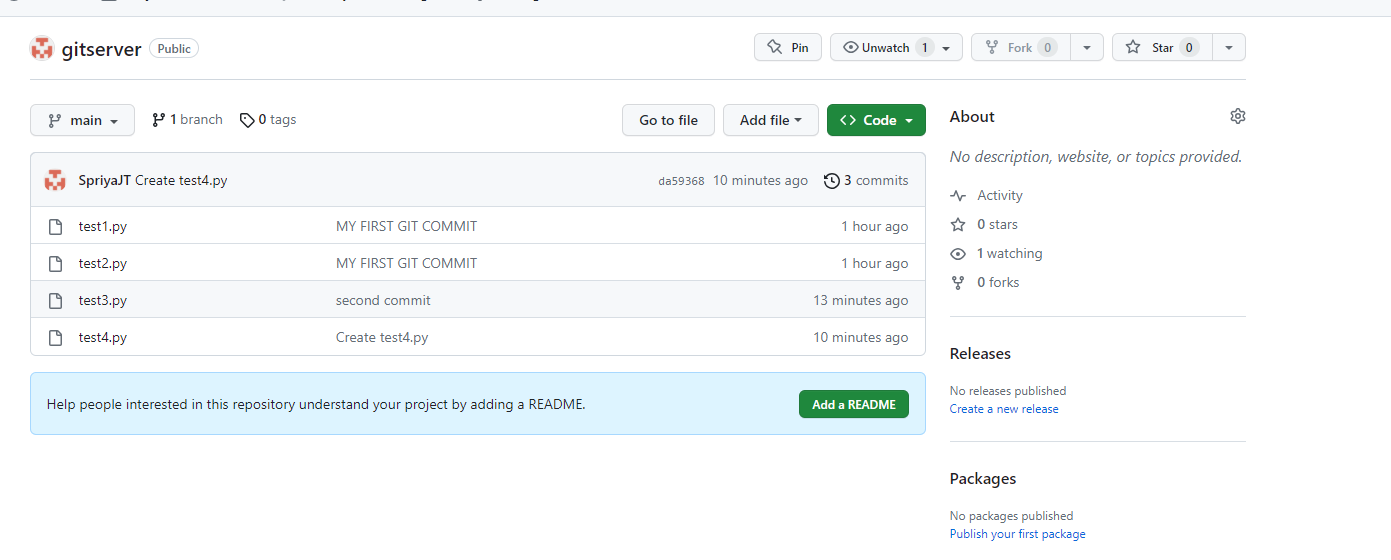
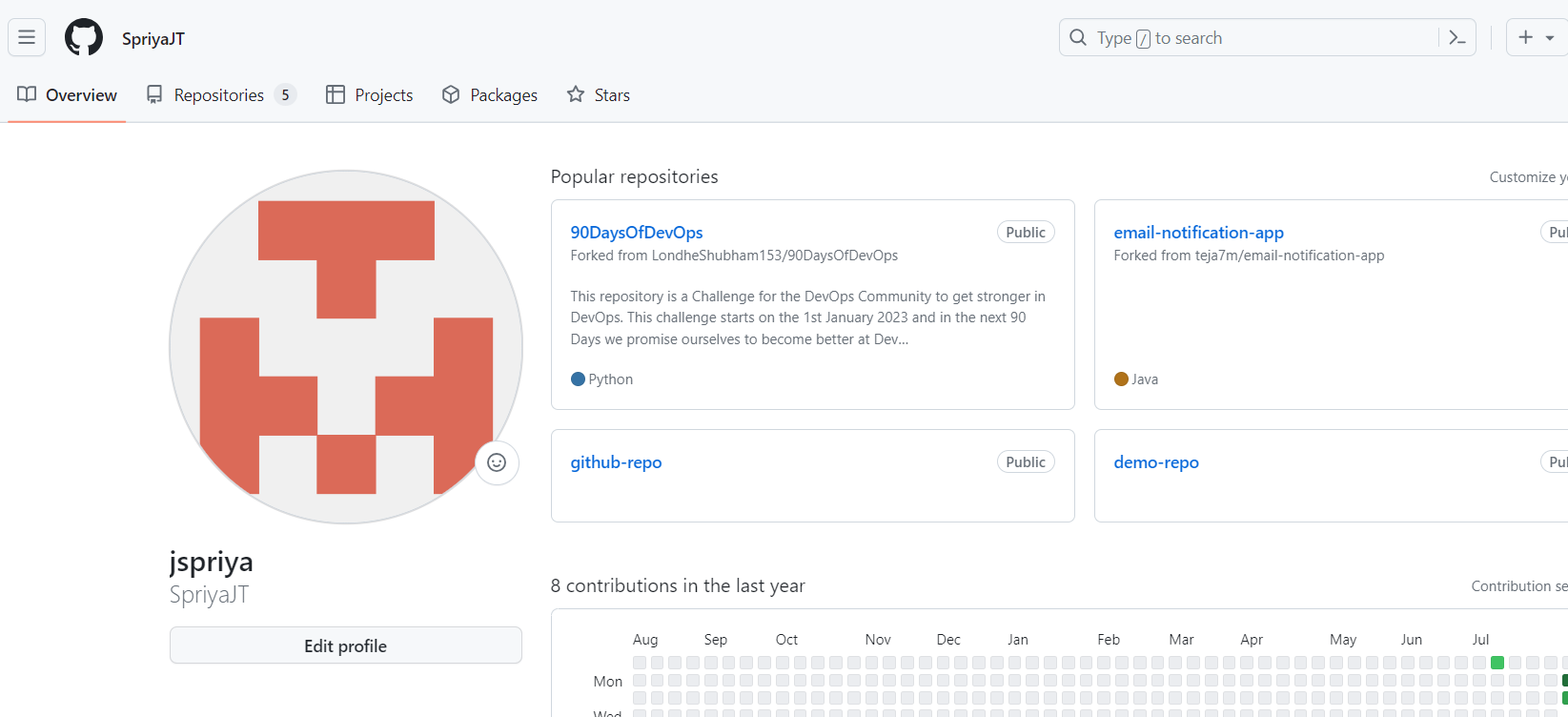
Screenshot of my GitHub account:
Hands-on (GitHub):
Set Up:
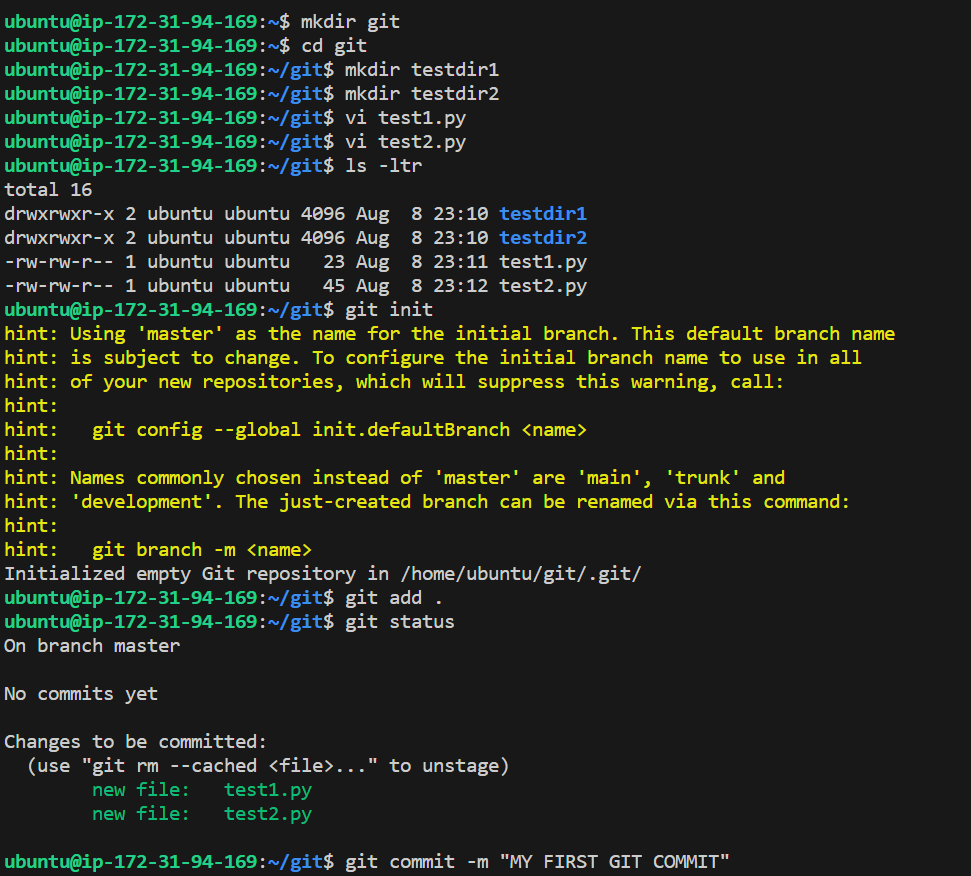
I've created a new folder on your computer using the
mkdircommand. Then entered that folder using thecdcommand.Added Files:
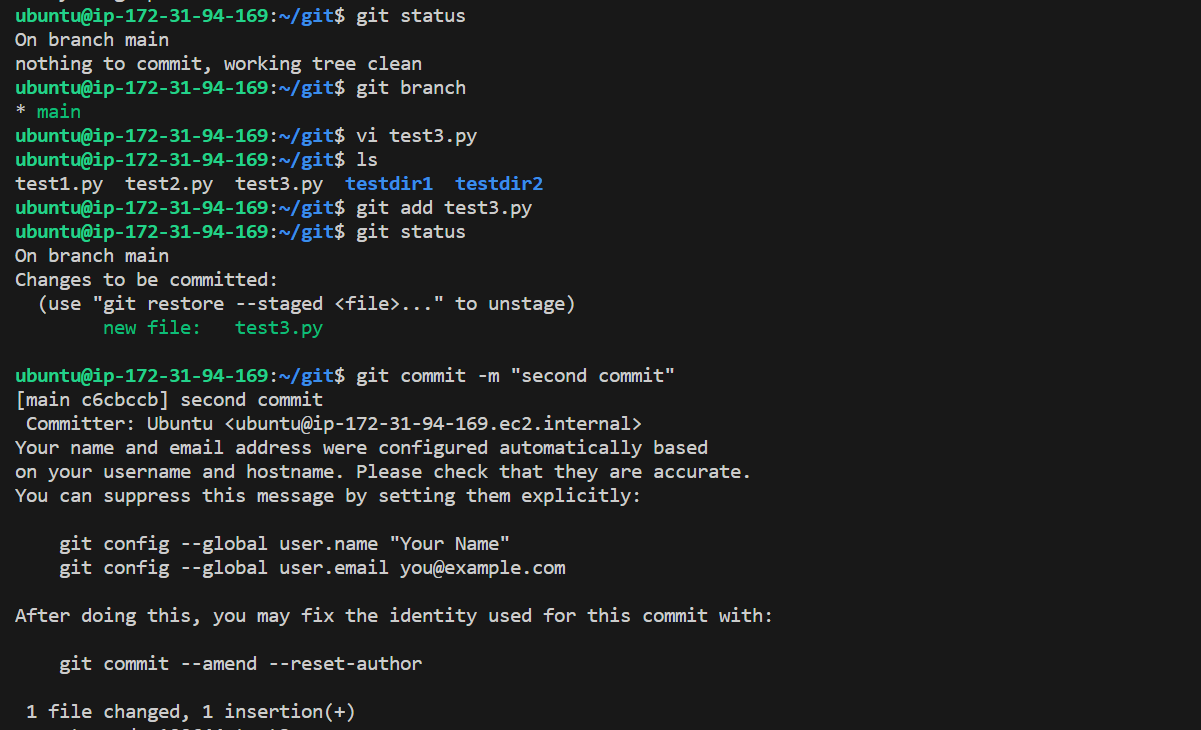
I've made some new files, test1.py and test2.py using the
vicommand.Initialized Git, Staged and Committed Changes:
I've turned the folder into a place where Git can manage my files using
git init. which helps Git keep track of changes.Then saved my new files using
git add .Then committed changes (or) saved these files in git history with command
git commit -m <message>. It's like a snapshot of your files at that moment.
Connected to GitHub:
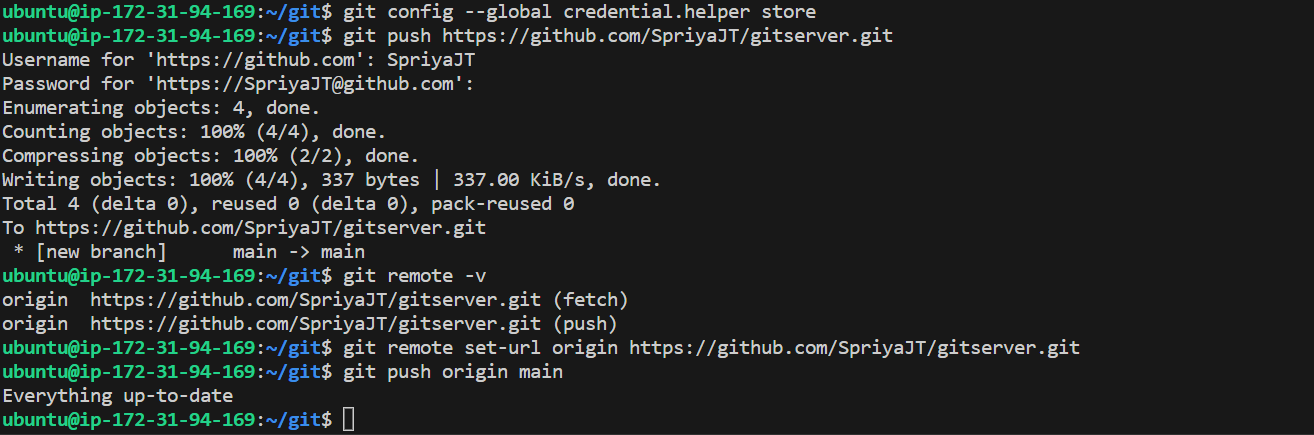
I've linked my local Git to my GitHub account using
git remote add origin [GitHub URL].This tells Git where to send my files while pushing.
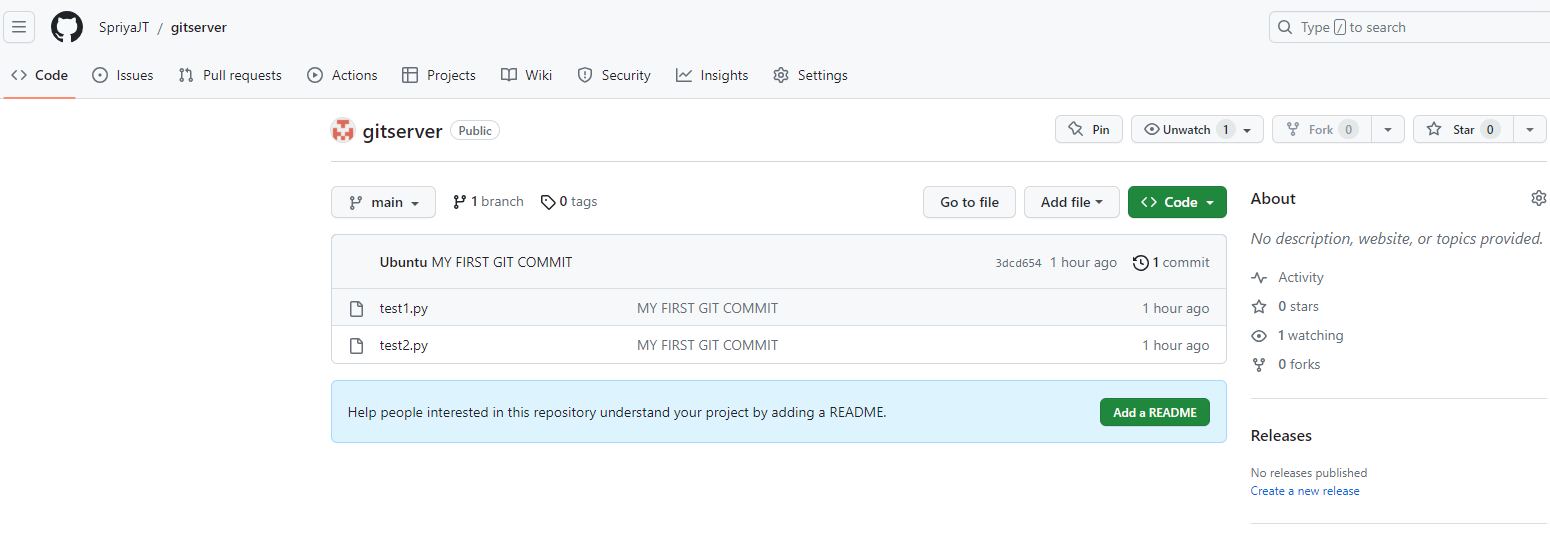
Pushed and pulled files using command line:
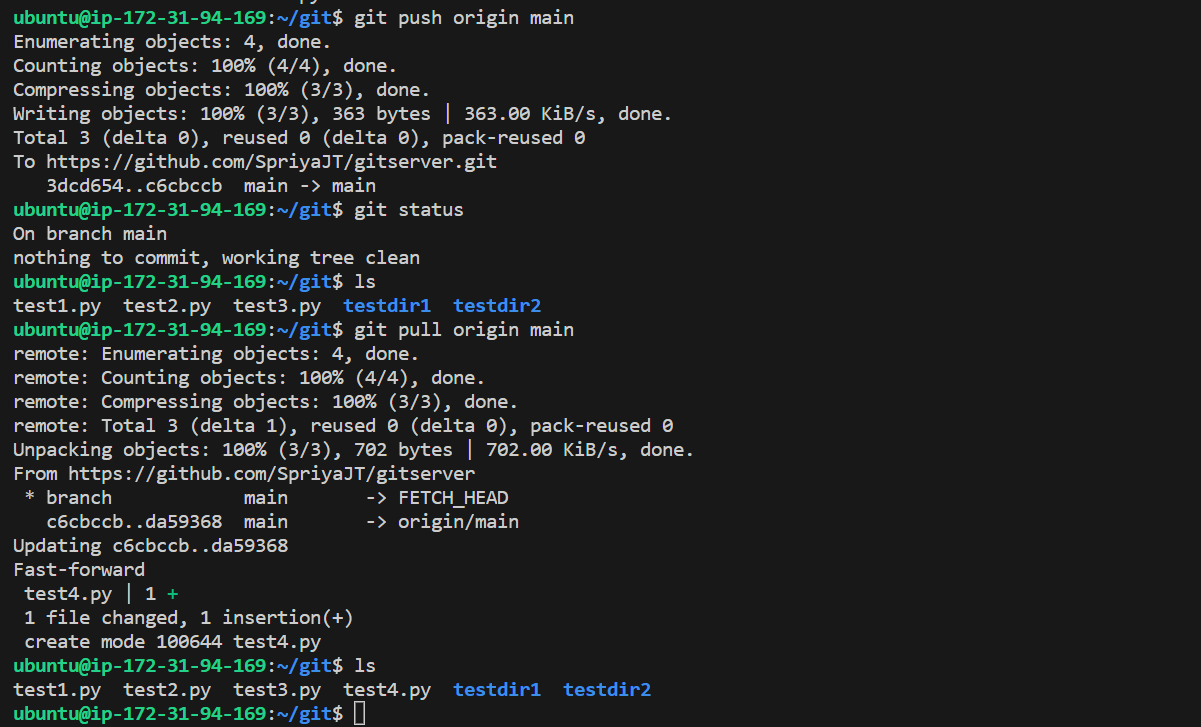
I've sent the locally created files from git to my GitHub with
git push origin main.Imagine it's like uploading your files to your GitHub account.I've retreived files from my GitHub to my local git branch using
git pull origin main.