File Permissions in Linux:
In Linux, the ls command is used to list the files and directories in a directory.
If the ls command is supplemented with -l option, it displays the long format listing of files and directories. The information displayed in the long format includes the following attributes and permissions:
Here's an example output of ls -l:
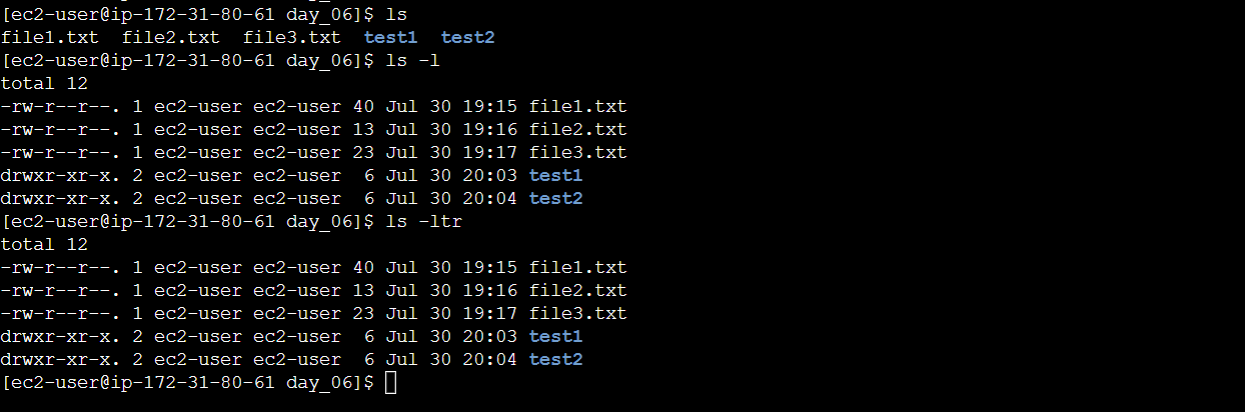
The -t and -r options used with ls -l (as in ls -ltr) sort the files in reverse order by modification time, displaying the most recently modified files at the end.
File Type and Permissions: The first column represents the file type and permissions. For each file or directory, there are ten characters in this column. The first character indicates the file type:
-: Indicates a regular file (a standard file that contains data).d: Indicates a directory (a folder that can contain other files and directories).
The next nine characters represent the permissions, which are divided into three sets of three characters each:
The first set (
rw-) represents the permissions for the owner (user) of the file. In this example, the owner can read and write (rw-) the file but cannot execute it (-).The second set (
r--) represents the permissions for the group to which the file belongs. In this case, the group can only read (r--) the file but cannot write or execute it (-).The third set (
r--) represents the permissions for others (everyone else). In this example, others can also only read (r--) the file but cannot write or execute it (-).
Number of Links: The second column represents the number of hard links to the file or directory. Ex: file1.txt (1), test1 (2).
Owner and Group: The third and fourth columns display the owner (
ec2-user) and the group (ec2-user) to which the file or directory belongs.Modification Time: The next two columns (columns five and six) show the date and time when the file or directory was last modified.
Filename: The last column displays the name of the file or directory.
Changing the File Permissions in Linux Using Commands:
In Linux, we can change the permissions of a file or directory using the following commands:
chmod: It helps modify the read (r), write (w), and execute (x) permissions for the owner, group, and others.
Here are some common examples of how to use the chmod command to change permissions:
Changing Permissions Using Numeric Mode:
The numeric mode is a convenient way to specify permissions using a three-digit octal number. Each digit represents the permissions for the owner, group, and others, respectively. The values are calculated as follows:
4 (Read): Add 4 to the sum if the read permission is desired.
2 (Write): Add 2 to the sum if the write permission is desired.
1 (Execute): Add 1 to the sum if the execute permission is desired.
For example, to set read and write permissions for the owner, read-only permissions for the group, and no permissions for others, you can use the octal number 744:
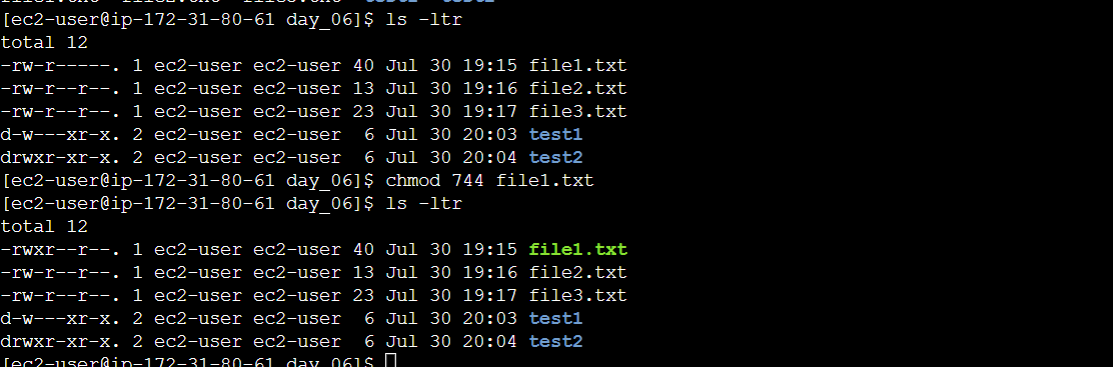
In this case, the owner gets read, write execute permissions (4 + 2 +1 = 6), and the group and others get read-only permissions (4) permissions.
Changing Permissions Using Symbolic Mode:
The symbolic mode allows you to modify permissions using symbols like
+,-, and=along with lettersr,w, andx.+: Adds the specified permission(s).-: Removes the specified permission(s).=: Sets the exact permission(s) specified, while removing all others.
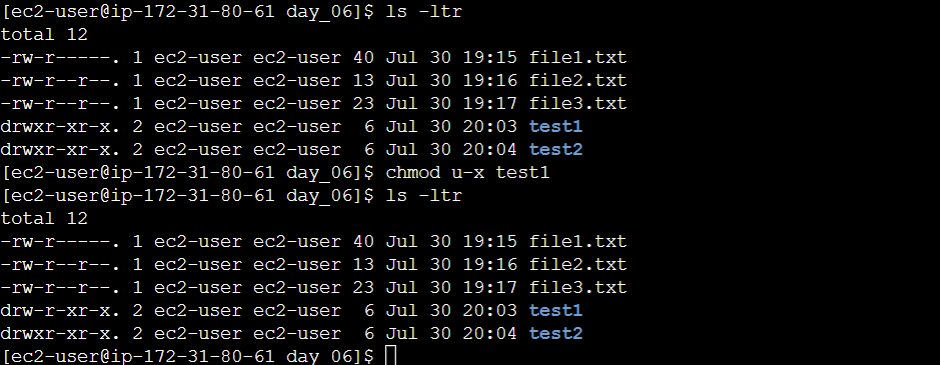
For example, to remove execute permission for the owner of a file:
chmod u-x <filename/directoryname>
Combining Multiple Permissions:
You can combine multiple permissions in a single
chmodcommand. For example, to remove read permissions for both the owner and the group following command will be used:chmod ug-r <filename/directoryname>
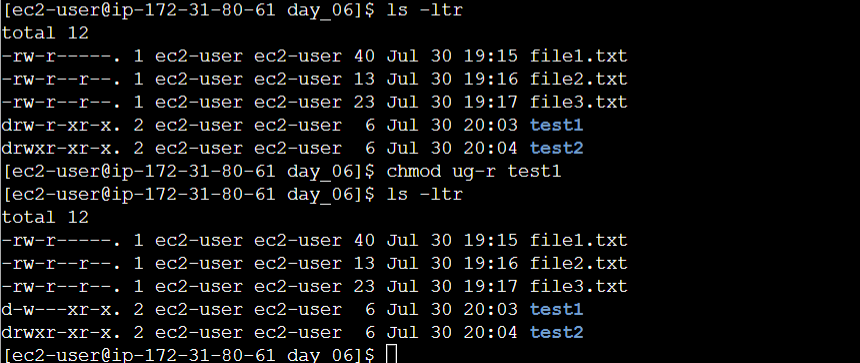
Recursively Changing Permissions for Directories:
To change permissions for directories and their contents recursively, you can use the
-Roption: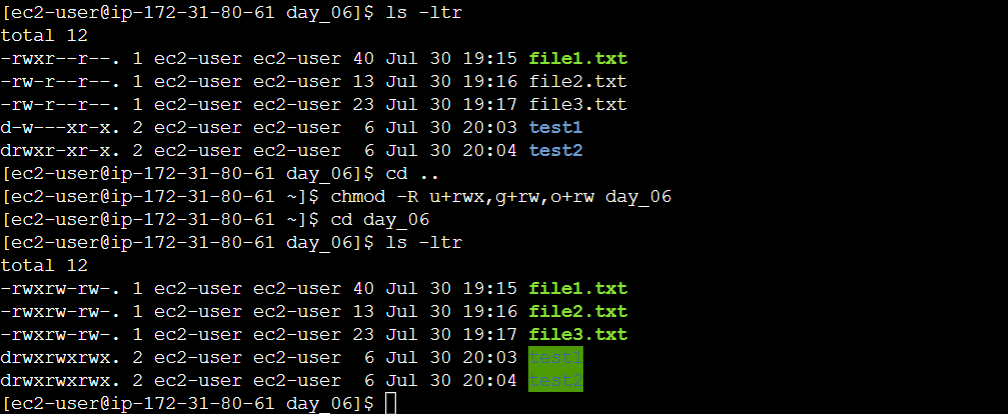
Be cautious when using the recursive option, as it will change permissions for all files and subdirectories within the specified directory.